One Login, Zero Friction: How Microsoft Entra ID + Salesforce SSO Transforms the Way Your Team Works
Say goodbye to password fatigue and hello to secure, seamless access.

Key Highlights
- Enterprises managing applications like Salesforce often face password fatigue, fragmented access management, rising IT support overhead, and increased security risks from disconnected identity systems.
- Integrating Microsoft Entra ID with Salesforce through Single Sign-On (SSO) enables centralized authentication, secure one-click access, MFA enforcement, automated provisioning, and streamlined identity governance.
- Sigma Infosolutions delivers enterprise-grade Salesforce SSO implementation, SAML configuration, identity and access management integration, security optimization, and scalable Salesforce consulting tailored to evolving business needs.
Introduction
As enterprises continue expanding their digital ecosystems, managing secure and seamless access across business applications has become a growing challenge. Platforms like Salesforce are critical to day-to-day operations, but disconnected login systems, password fatigue, and fragmented identity management often create friction for employees and additional complexity for IT teams.
To address these challenges, organizations are increasingly adopting Single Sign-On (SSO) strategies powered by Microsoft Entra ID. By integrating Microsoft Entra ID with Salesforce, businesses can centralize authentication, strengthen security policies, simplify user access, and improve operational efficiency across the organization.
This blog explores how Microsoft Entra ID + Salesforce SSO works, the business benefits it delivers, and the step-by-step process for implementing a scalable and secure identity management framework.
The Password Problem Nobody Wants to Talk About
Let’s be honest — nobody enjoys juggling passwords. Your sales team doesn’t want to remember yet another login for Salesforce. Your IT admins don’t want another password reset ticket in their queue. And your CISO? They’re losing sleep over every unmanaged credential floating around the organization.
That’s exactly why more enterprises are turning to Single Sign-On (SSO) — and when you pair Microsoft Entra ID with Salesforce, you’re not just simplifying logins. You’re upgrading your entire security posture.
At NPP, we’ve rolled out this exact integration, and the results speak for themselves: faster logins, stronger security, happier users. Here’s why this setup is a game-changer, and how you can implement it yourself.
What Exactly Is Happening Behind the Scenes?
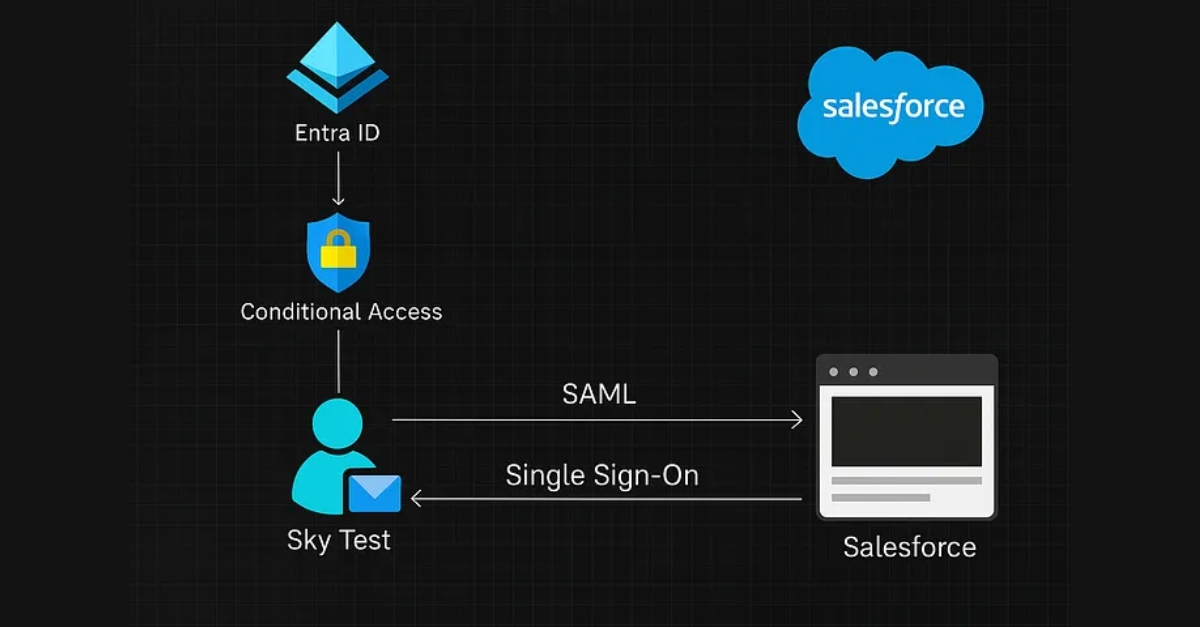
In simple terms: Microsoft Entra ID becomes the “gatekeeper” for your Salesforce environment. Users sign in once with their Microsoft corporate credentials, and Salesforce trusts that authentication — no second password, no duplicate accounts, no friction.
The magic behind it? The SAML 2.0 protocol — an industry-standard way for two platforms to securely vouch for a user’s identity.
Here’s what your team gets out of the box:
- SP-initiated SSO — Start from Salesforce, get authenticated by Microsoft
- IdP-initiated SSO — Start from Microsoft’s My Apps portal, land directly in Salesforce
- Web and mobile support — Same seamless login experience, everywhere
- Just-In-Time (JIT) provisioning — New users automatically get a Salesforce account on first login
- Multi-IdP support — Got multiple Microsoft tenants? No problem. This setup scales with you.
Why Your Business Will Love This
1. Centralized Control, Zero Shadow IT
Access management lives in one place — Microsoft Entra ID. Onboard, offboard, update permissions, and audit activity from a single console. When someone leaves the company, one click disables their Salesforce access too.
2. Built-In Enterprise Security
Microsoft’s Conditional Access and Multi-Factor Authentication (MFA) policies now extend to Salesforce. That means the same rigorous security standards protecting your email and documents now protect your customer data too.
3. Happier, More Productive Users
Fewer passwords = fewer resets = fewer interruptions. Your team spends more time closing deals and serving customers, not wrestling with login screens.
4. Lower IT Overhead
Password reset tickets? Way down. Manual user provisioning? Automated. Your IT team finally gets to focus on strategic projects instead of credential cleanup.
5. Future-Ready Architecture
This isn’t a patch job. It’s a scalable identity foundation that grows with your organization supporting mergers, new subsidiaries, and evolving security requirements.
Also, read the blog: Salesforce Spring ’26 Release Note
The Story of How It Works
Picture this: Sarah, a sales rep at NPP, opens her laptop on Monday morning. She’s already signed in to her Microsoft account. She clicks the Salesforce tile on her Microsoft My Apps dashboard — and boom, she’s in Salesforce. No second login. No typing a password. No waiting.
Behind the scenes, a lot just happened in milliseconds:
- Salesforce noticed Sarah wanted in
- It asked Microsoft Entra ID, “Is this really Sarah?”
- Microsoft confirmed her identity (using her already-active session and any MFA or Conditional Access checks)
- Salesforce opened the door — welcome in, Sarah
That’s the user experience. Simple, fast, invisible. And that’s the whole point.
Before You Start: The Checklist
Before diving into setup, make sure you have these in place — it’ll save you headaches later.
On the Microsoft side, you’ll need:
- An active Microsoft Entra tenant
- One of these roles: Application Administrator, Cloud Application Administrator, or Application Owner
On the Salesforce side, you’ll need:
- A Salesforce org with an SSO-enabled license
- My Domain configured and deployed (this is non-negotiable — SSO won’t work without it)
- System Administrator access
Got all that? Great. Let’s build this thing.
The Step-by-Step Setup Guide
Step 1: Add Salesforce to Microsoft Entra ID
First, we need to tell Microsoft Entra ID that Salesforce is a trusted application.
- Sign in to the Microsoft Entra admin center
- Navigate to Entra ID → Enterprise Applications → New application
- In the gallery search, type “Salesforce”
- Select the Salesforce tile and click Add
- Wait a few moments for Microsoft to provision the app in your tenant
Checkpoint: You should now see Salesforce listed in your Enterprise Applications.
Step 2: Enable SAML-Based SSO in Microsoft Entra ID
Now we’ll tell Entra ID how to authenticate users for Salesforce.
- Open the newly added Salesforce application
- In the left menu, click Single sign-on
- Select SAML as the sign-on method
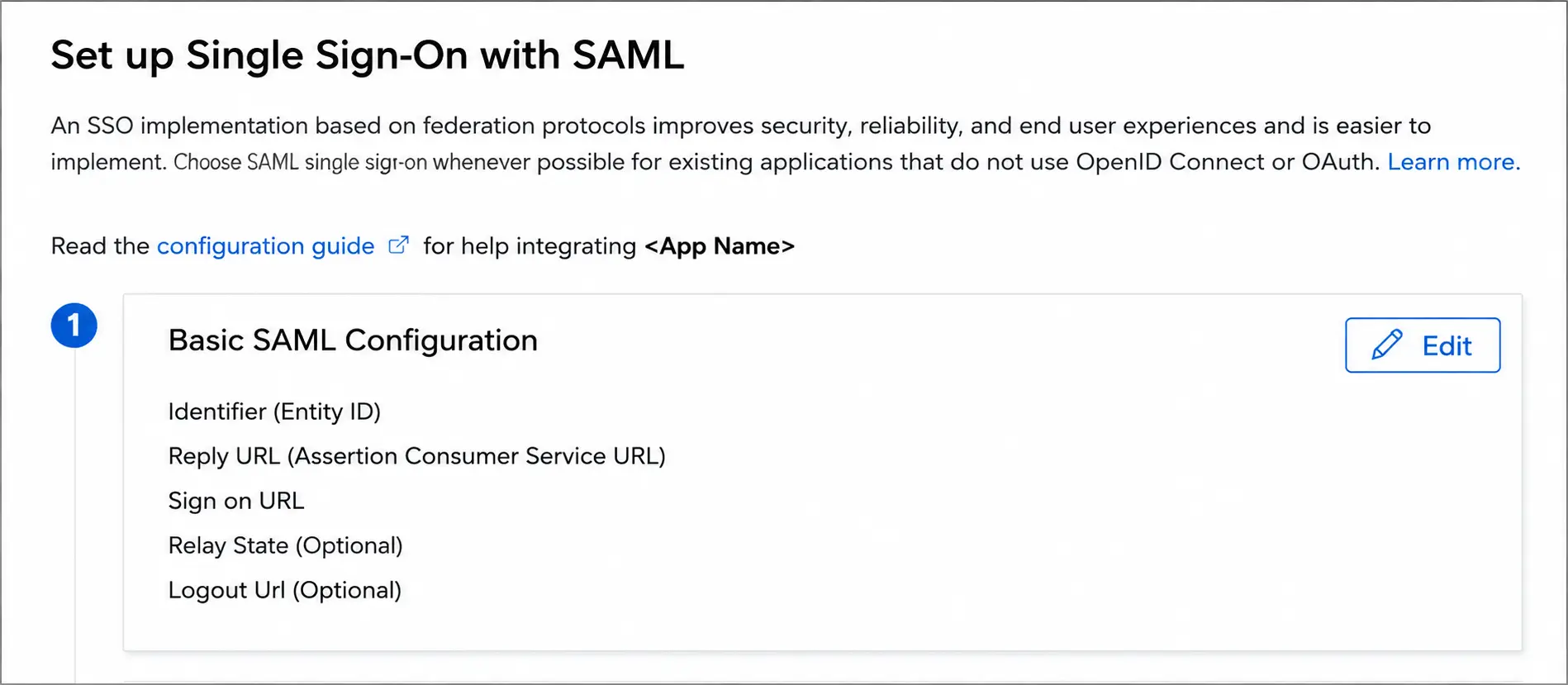
You’ll land on the SAML configuration page — this is your command center.
Step 3: Configure the Basic SAML Settings
This is where Microsoft and Salesforce start speaking the same language. You’ll need your Salesforce My Domain URL handy.
- Click Edit under Basic SAML Configuration
- Fill in these three fields (replace <subdomain> with your actual Salesforce My Domain):
Field | Value |
| Identifier (Entity ID) | https://<subdomain>.my.salesforce.com |
| Reply URL (ACS URL) | https://<subdomain>.my.salesforce.com |
| Sign-on URL | https://<subdomain>.my.salesforce.com |
3. Click Save
Pro tip: Double-check your My Domain values before saving. One typo here, and nothing works.
Step 4: Download the Federation Metadata XML
Instead of manually copying certificates and endpoints, Microsoft packages everything Salesforce needs into a single XML file.
- On the Set up Single Sign-On with SAML page, scroll to SAML Signing Certificate
- Click Download next to Federation Metadata XML
- Save the file somewhere easy to find — you’ll upload it to Salesforce in a minute
Also, in the Set up Salesforce section, copy the configuration URLs (Login URL, Identifier, Logout URL if needed). Keep these handy.
Step 5: Create a Test User in Microsoft Entra ID
Before rolling this out to the whole company, let’s test with one user.
- In Microsoft Entra ID, create a test user (for example, B.Simon)
- Go back to your Salesforce Enterprise Application
- Click Users and groups → Add user/group
- Assign your test user to the app
This user is now authorized to sign in to Salesforce via SSO.
Step 6: Enable SAML in Salesforce
Now let’s prepare Salesforce to accept Microsoft as its identity provider.
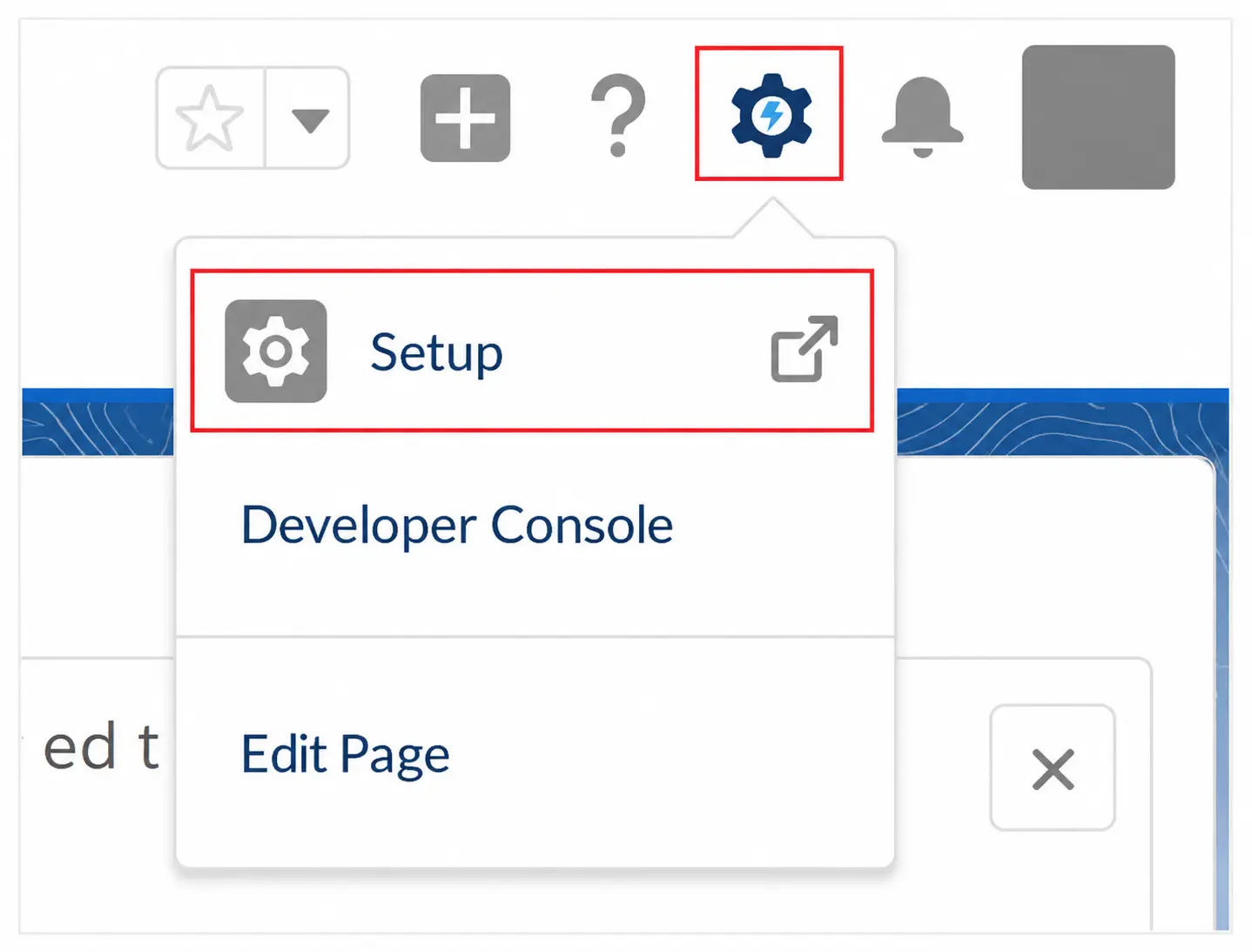
- Log in to Salesforce as a System Administrator
- Go to Setup
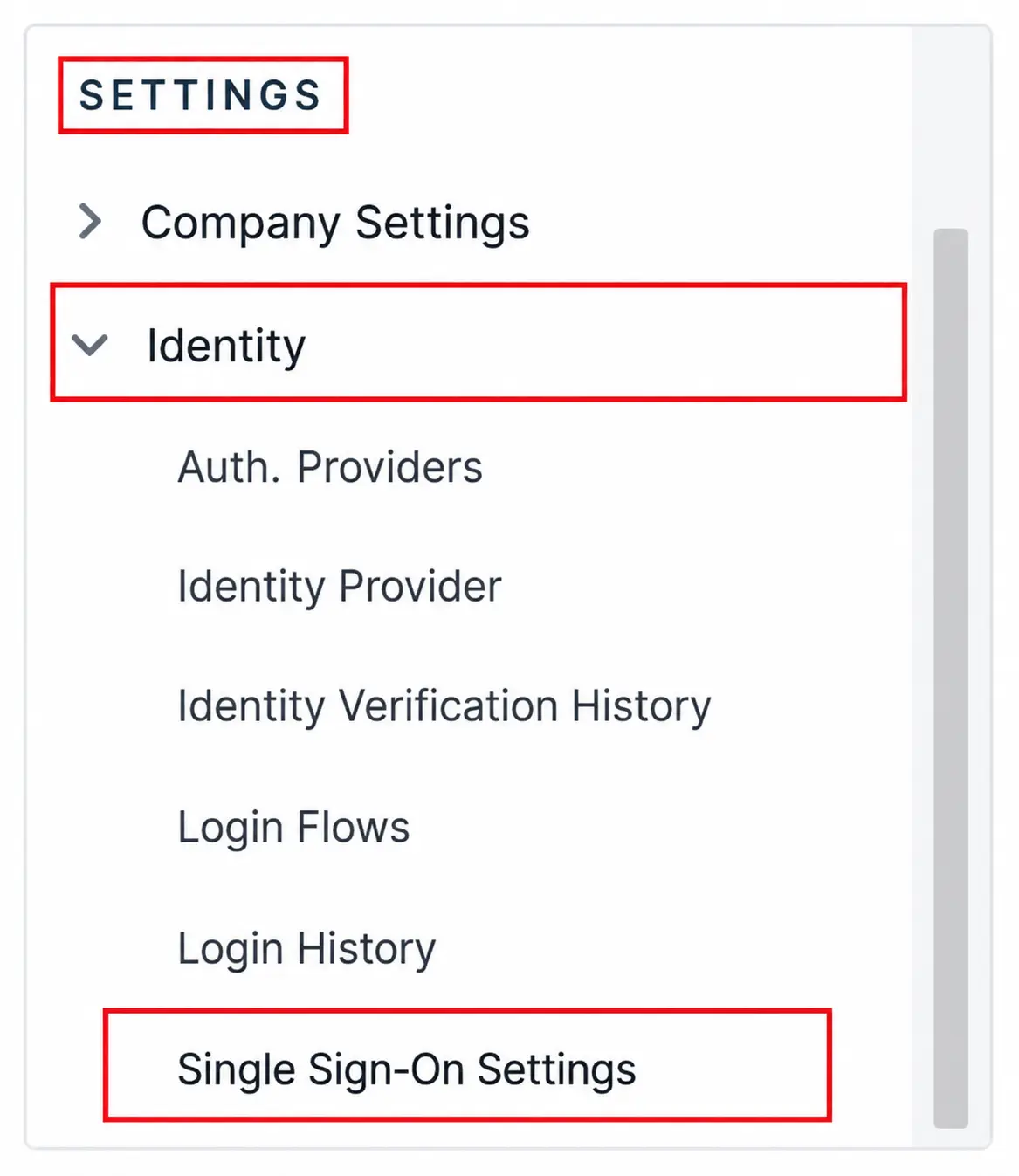
3. In the Quick Find box, search for Single Sign-On Settings (under Identity)
4. Click Edit
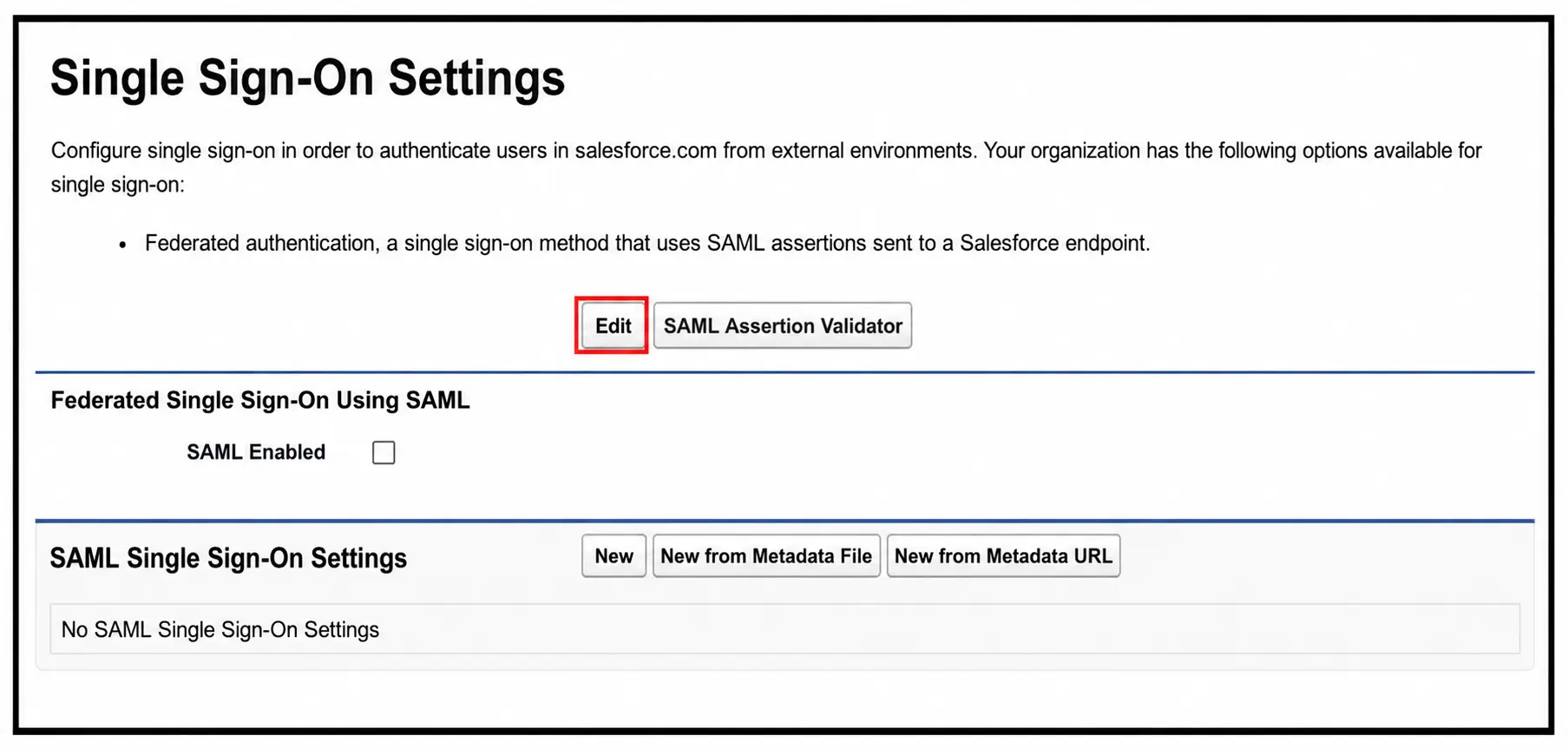
5. Check the box for SAML Enabled
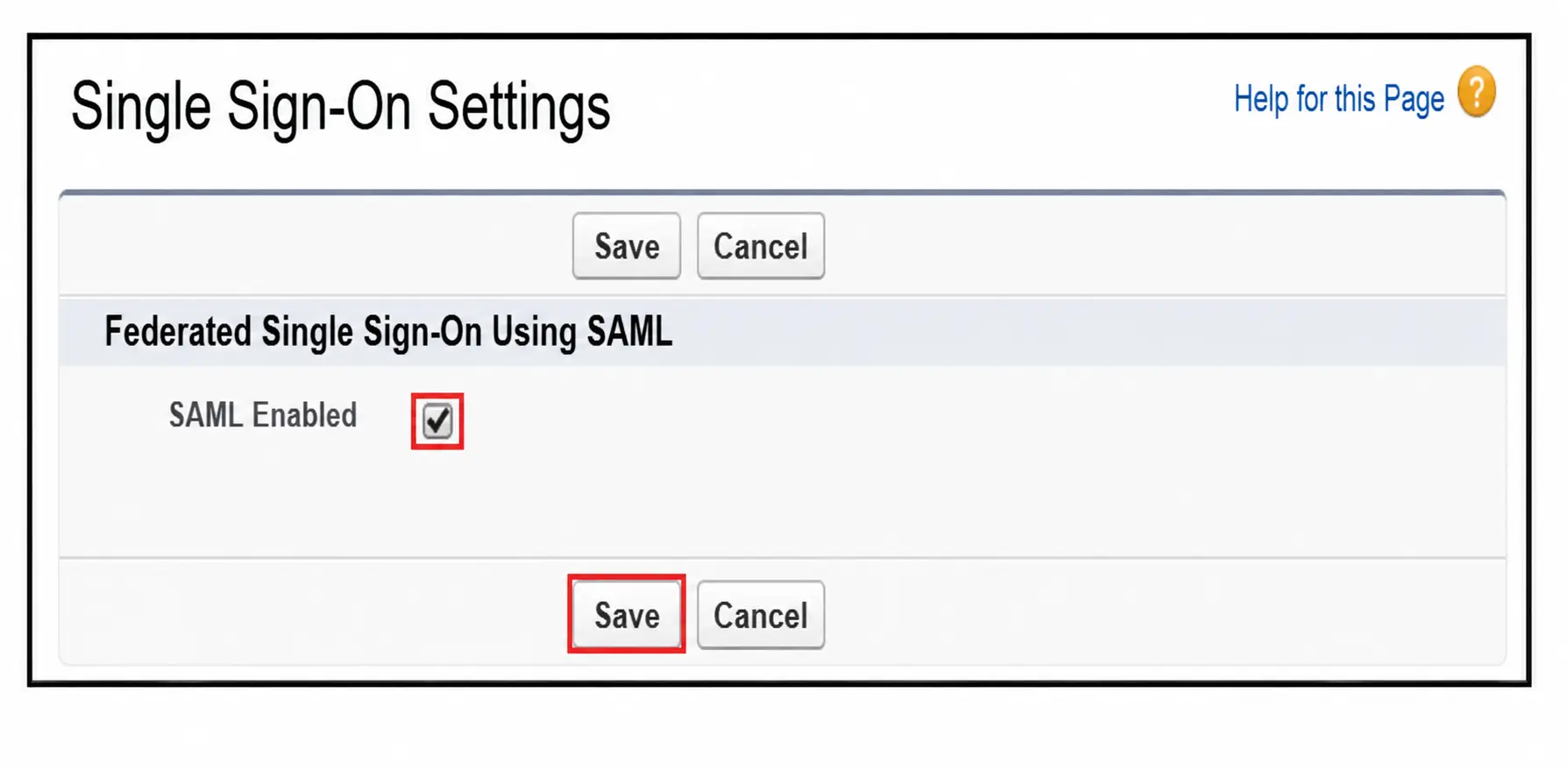
6. Click Save
Step 7: Upload the Metadata File to Salesforce
This is where the magic happens — Salesforce will read Microsoft’s metadata and auto-configure itself.
- On the Single Sign-On Settings page, click New from Metadata File
- Upload the Federation Metadata XML you downloaded in Step 4
- Click Create
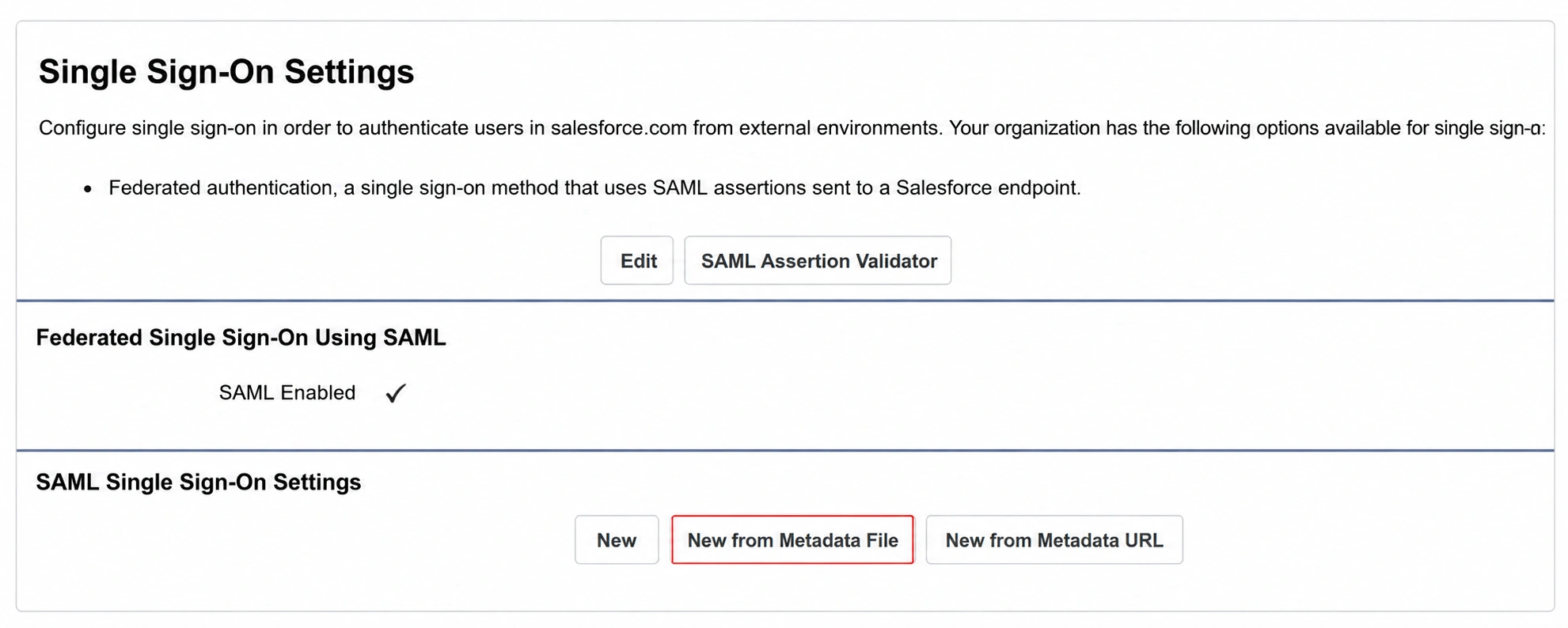
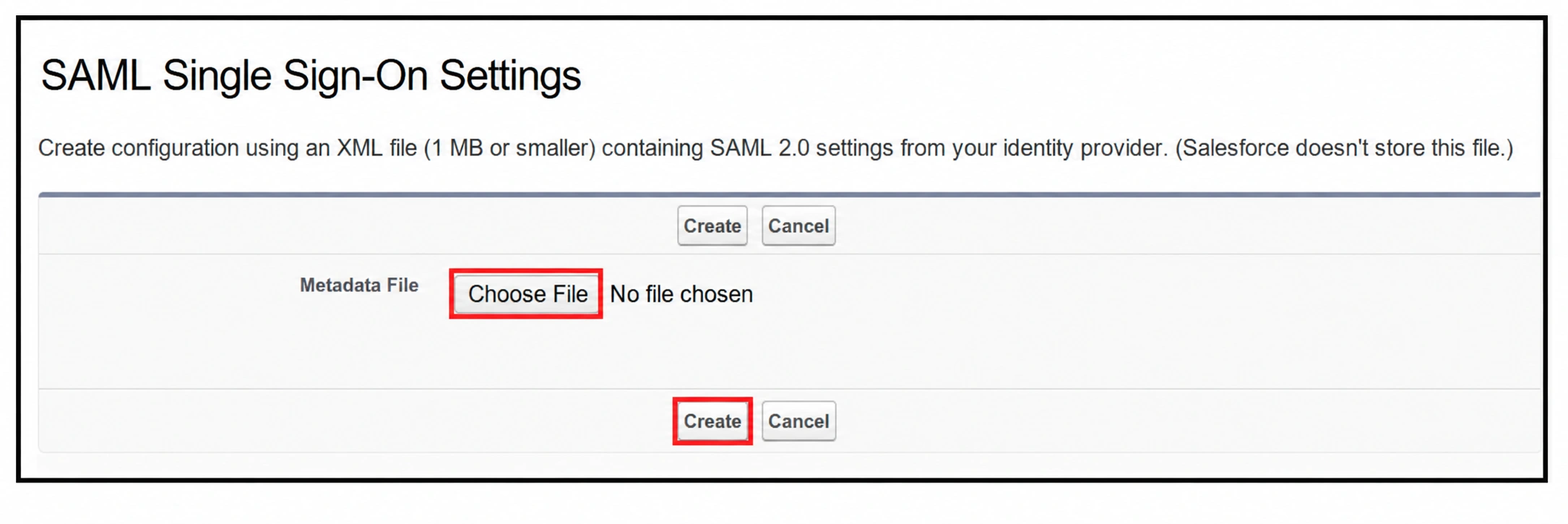
Salesforce will populate all the SAML fields automatically. No manual certificate copy-pasting. No endpoint URL hunting.
Step 8: Configure User Provisioning and Identity Mapping
Now let’s tell Salesforce how to match a Microsoft user to a Salesforce user.
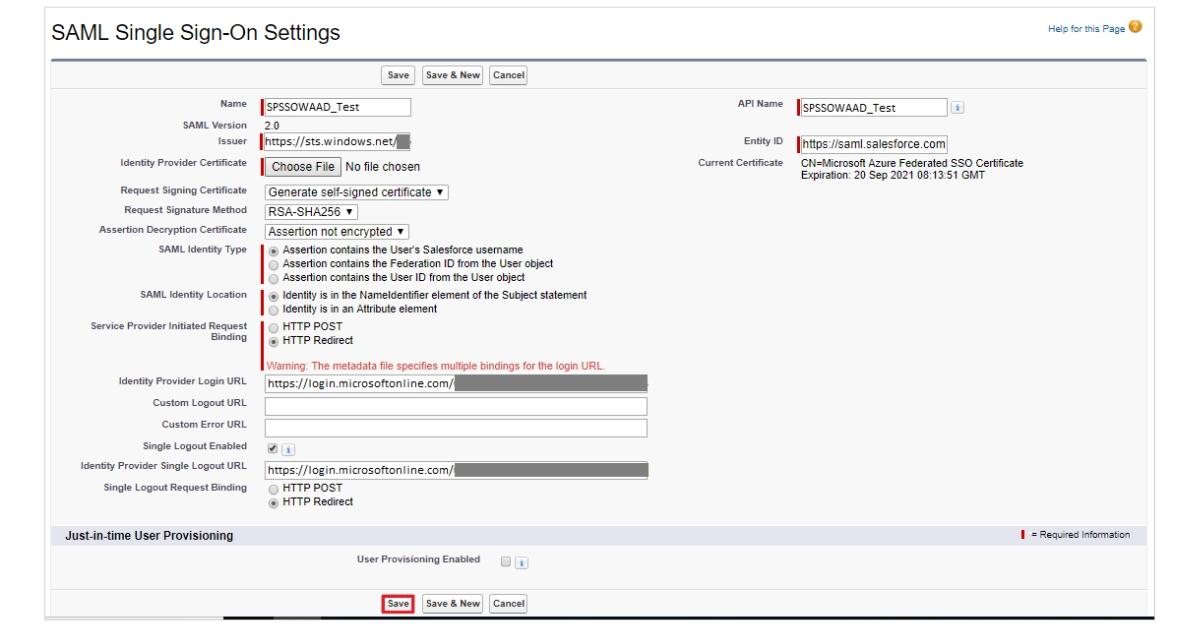
On the SAML Single Sign-On Settings page:
- Enable User Provisioning Enabled (this turns on Just-In-Time provisioning)
- For SAML Identity Type, choose one of:
- Federation ID (recommended — most secure and flexible)
- Salesforce Username
- Save your changes
💡 Why Federation ID? It decouples your Salesforce identity from email addresses or usernames, which means you can change either one without breaking SSO.
Step 9: Activate SSO at the My Domain Level
This is the final flip of the switch — telling Salesforce to actually use the SSO configuration for user logins.
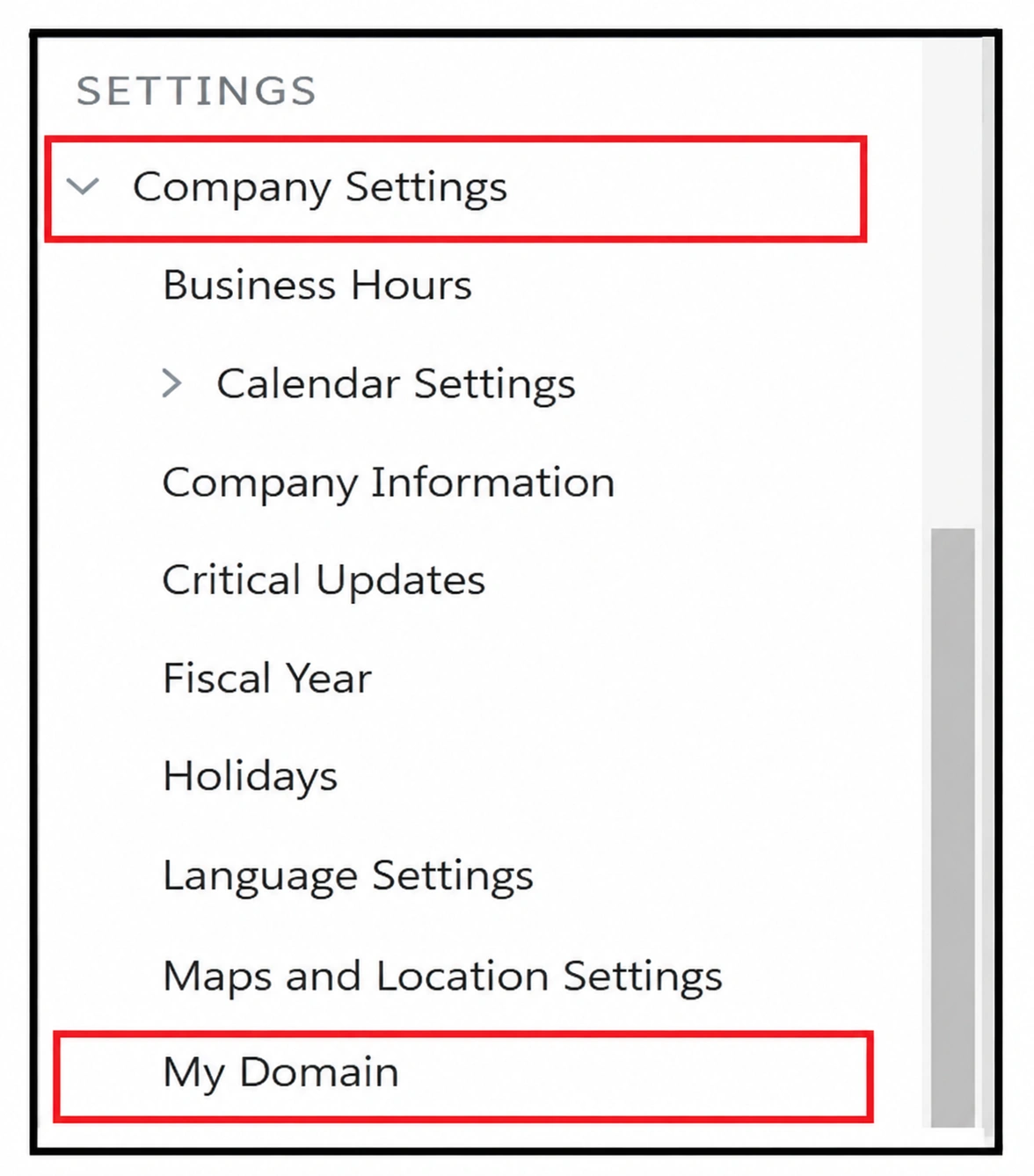
- Navigate to Setup → Company Settings → My Domain
2. Scroll down to the Authentication Configuration section
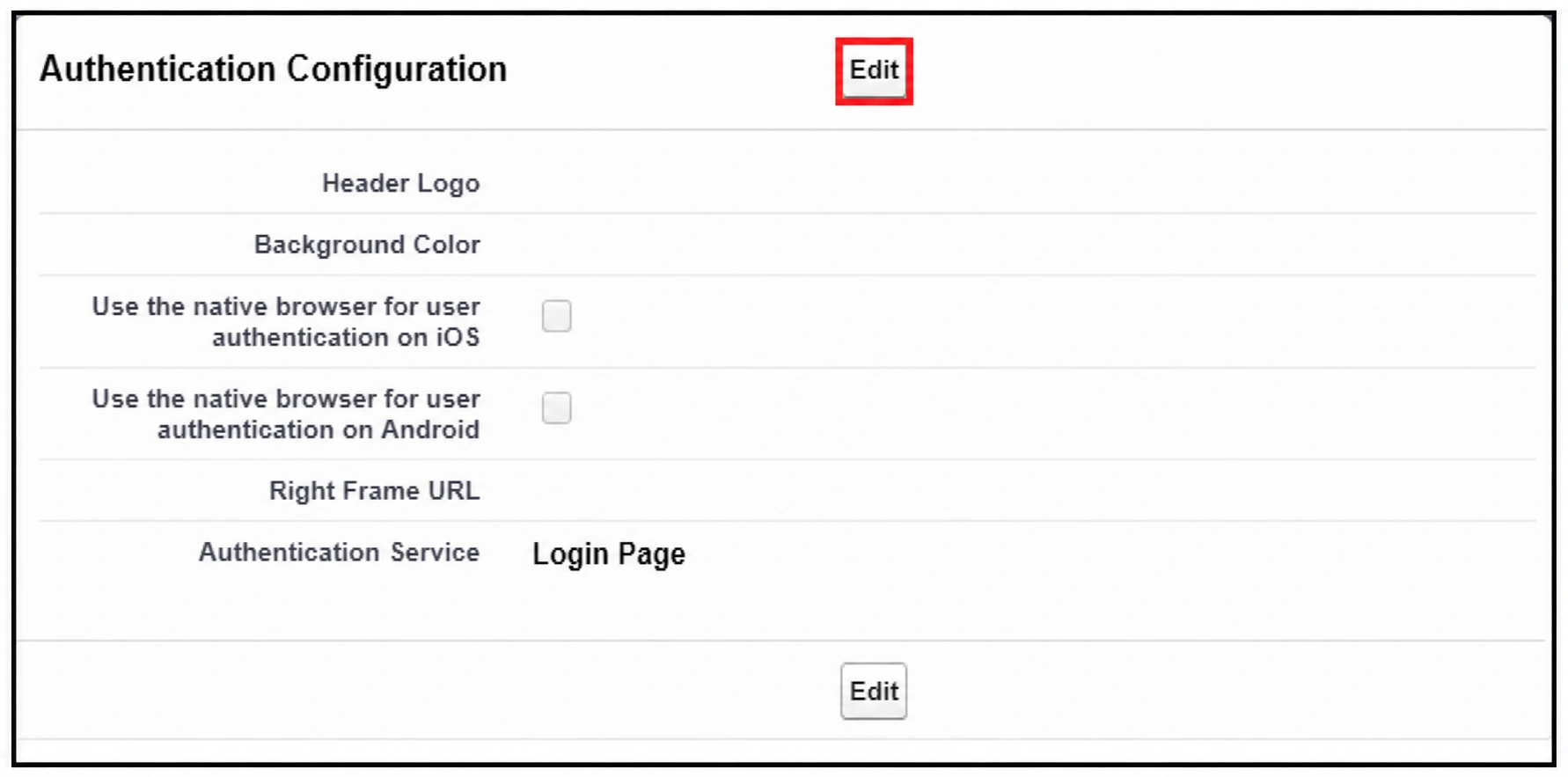
3. Click Edit
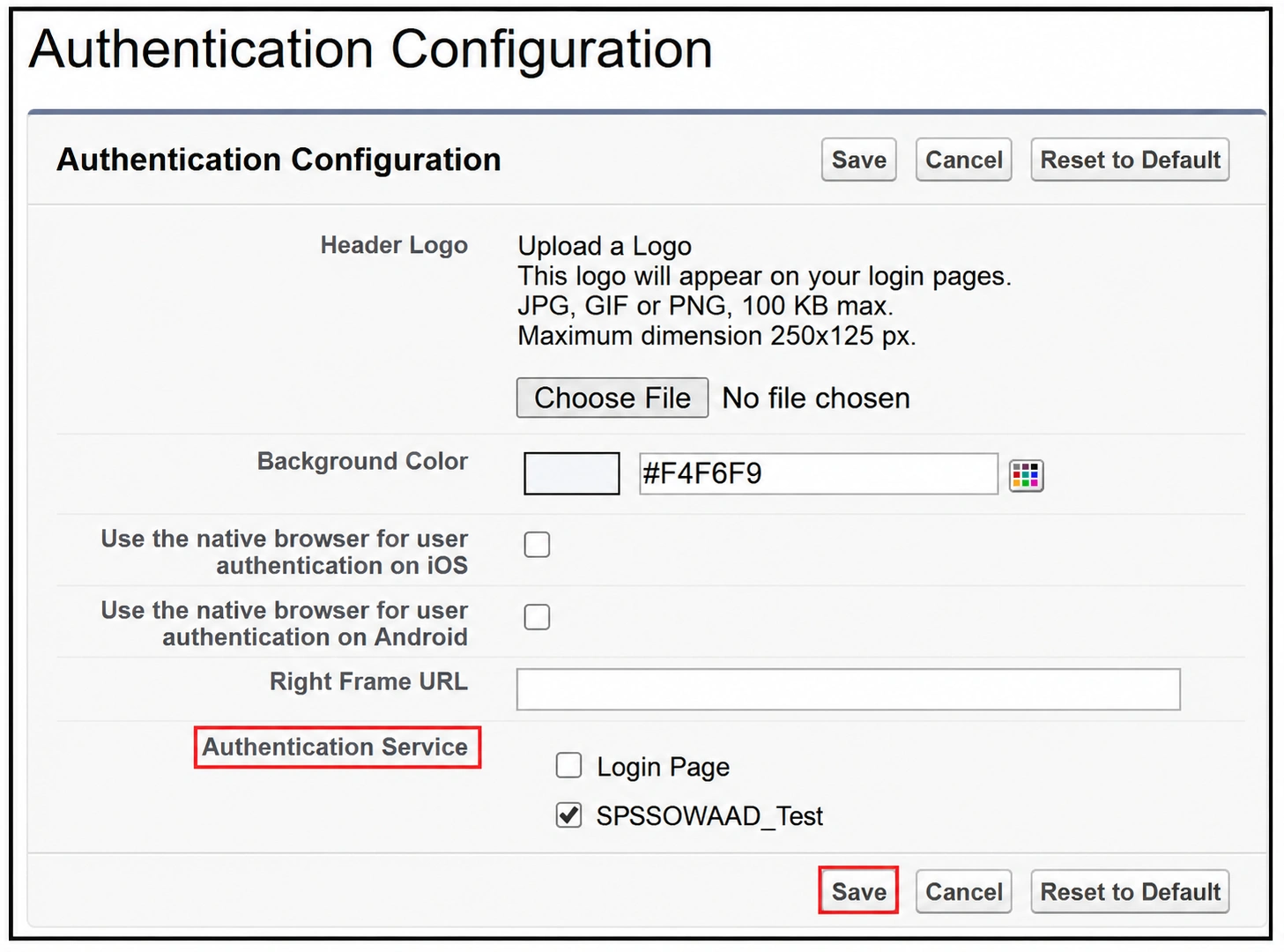
4. Under Authentication Service, select the name of the SAML SSO setting you just configured
5. Click Save
Your SSO is now live!
Step 10: Test It (Trust, But Verify)
Before you tell the whole company, test the full flow.
Test via Microsoft’s My Apps portal:
- Log in to https://myapps.microsoft.com as your test user
- Click the Salesforce tile
- You should land in Salesforce, logged in, without entering a Salesforce password
Test via Salesforce directly:
1. Open your Salesforce My Domain URL
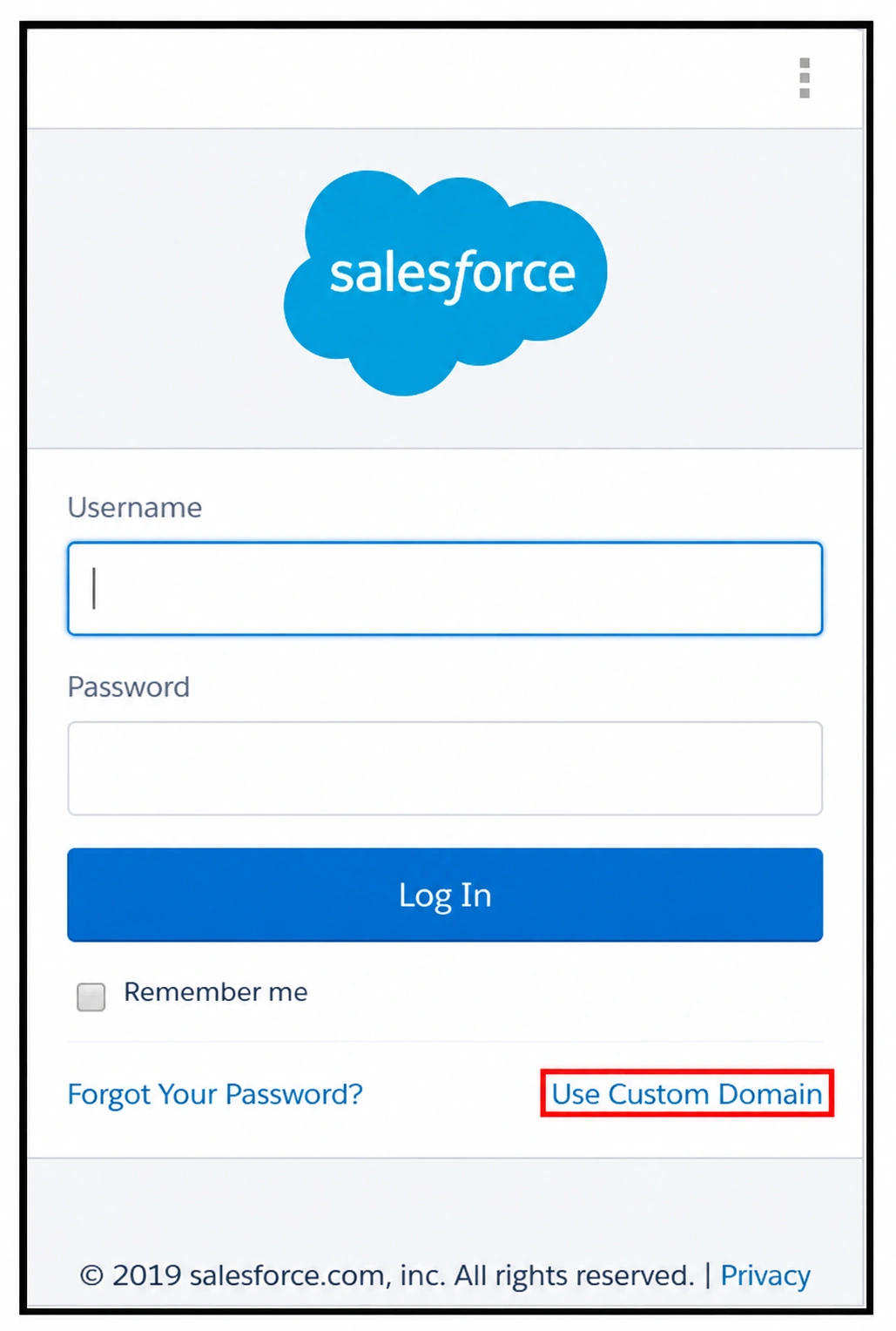
2. Click Use Custom Domain (if shown)
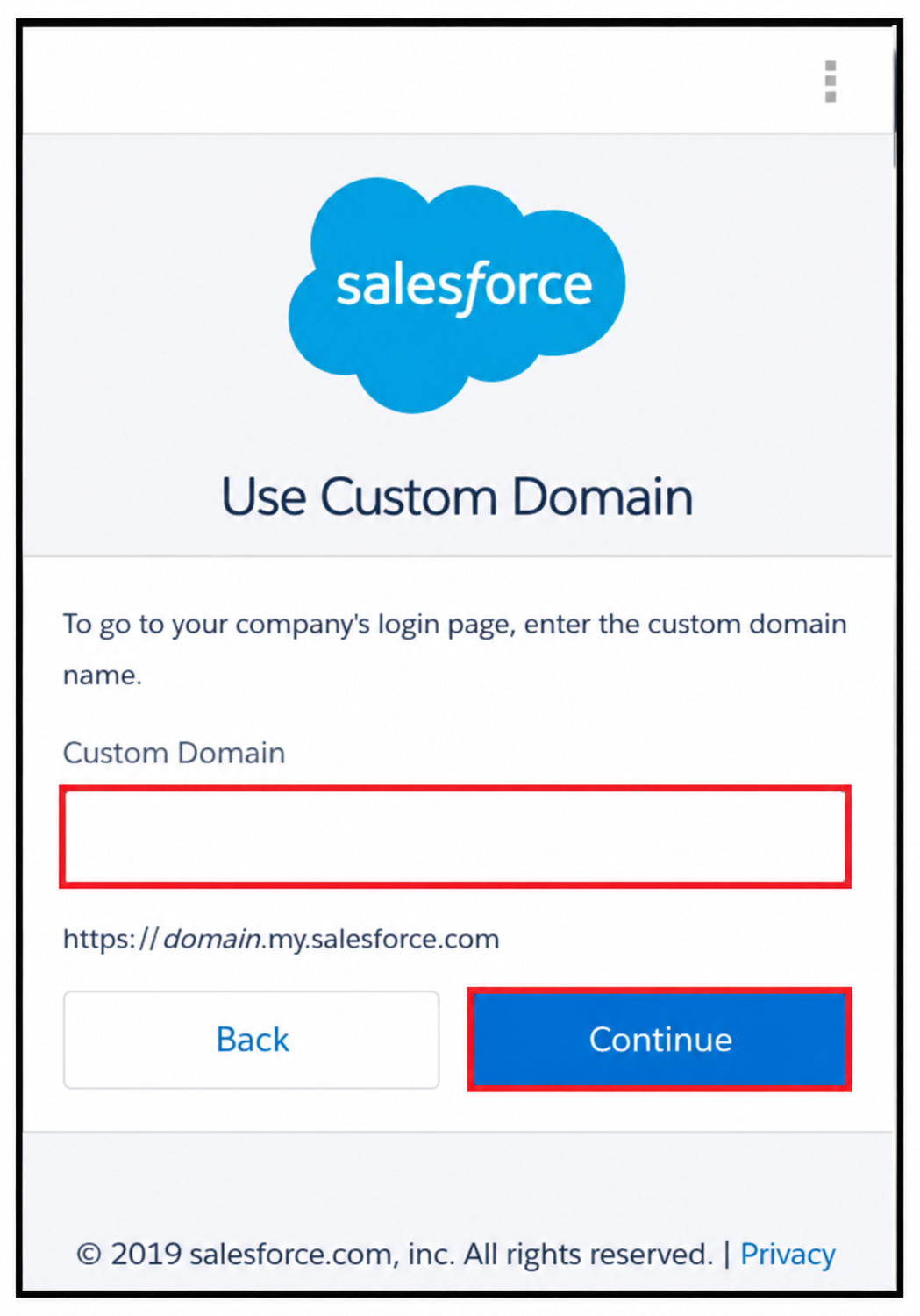
3. Enter your Salesforce My Domain
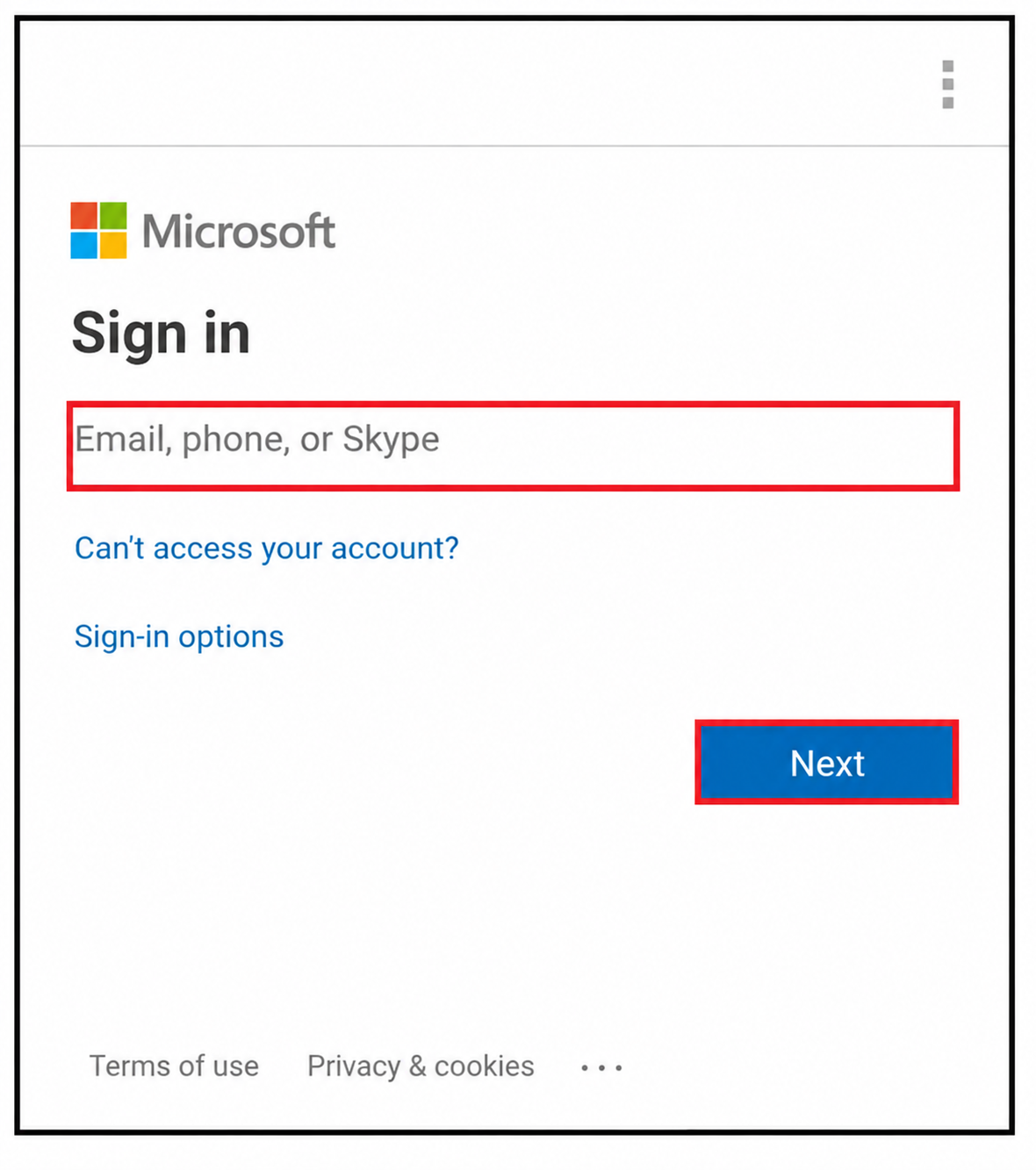
4. You’ll be redirected to Microsoft to sign in
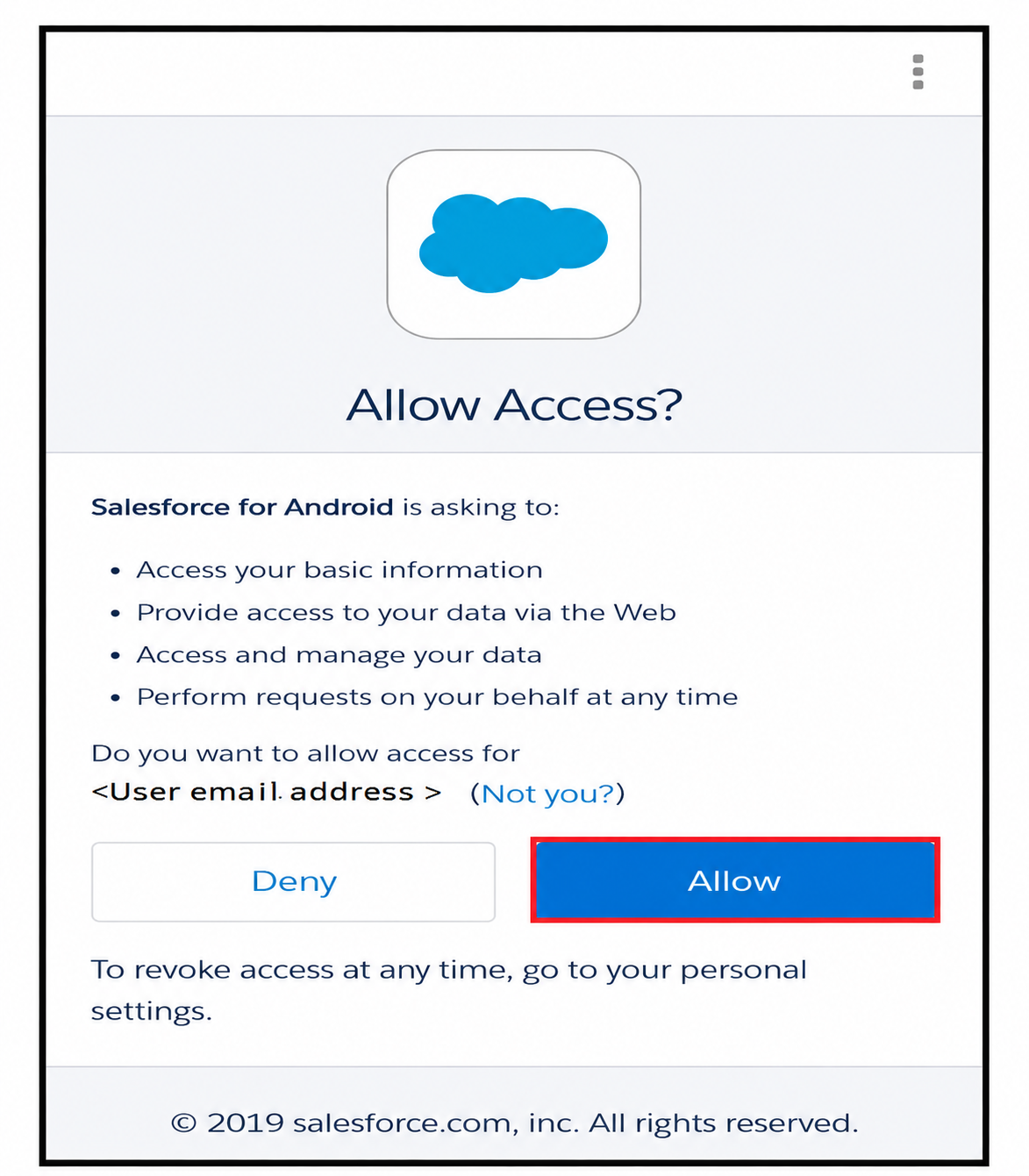
5. Approve any access prompts
6. You should land in Salesforce, authenticated
If both flows work — congratulations, you’ve nailed it.
Step 11: Lock It Down (Optional, but Recommended)
Once you’ve validated everything works, it’s time to close the back door.
- In Salesforce, disable local login access so users can only sign in through Microsoft
- Make sure your Conditional Access and MFA policies in Microsoft Entra ID are active
- Keep at least one break-glass admin account with local login — just in case Microsoft ever has an outage
This last step is what transforms your setup from “SSO enabled” to “truly centralized identity.”
The Flexibility Factor: You’re Still in Control
Here’s something we love about this setup — it doesn’t lock you in. Salesforce gracefully supports both SSO and traditional login methods side by side. That means:
- Emergency admin access is preserved for break-glass scenarios
- Phased rollouts are simple — migrate users gradually without disruption
- Multiple identity providers can coexist, so if you have NPP users on one Microsoft tenant and Sigma users on another, both groups can sign in to the same Salesforce org using their own credentials
It’s centralized when you want it, flexible when you need it.
Read our success story: Unifying Multi-Org Operations with Salesforce-to-Salesforce Integration for a specialty finance company
Why Choose Sigma Infosolutions for Salesforce Identity and Access Management?
As organizations modernize their digital ecosystems, identity and access management has become a critical component of Salesforce transformation initiatives. Beyond enabling secure access, enterprises today need centralized authentication frameworks that can support scalability, compliance, operational efficiency, and seamless user experiences across business applications.
This is where Sigma Infosolutions helps enterprises create long-term value. With deep expertise in Salesforce consulting and enterprise integration, Sigma supports organizations in implementing secure and scalable Single Sign-On (SSO) solutions using Microsoft Entra ID and Salesforce.
Enterprise-Grade SSO & Identity Integration
Sigma helps businesses implement robust Salesforce SSO frameworks with secure SAML configuration, centralized authentication, Multi-Factor Authentication (MFA), Conditional Access policies, and automated user provisioning to simplify identity management across the organization.
Scalable Salesforce Security & Governance
From user lifecycle management and identity governance to multi-tenant architecture support, Sigma enables enterprises to strengthen Salesforce security while reducing operational overhead and improving visibility across access management processes.
Future-Ready Salesforce Consulting
As business environments evolve, Sigma helps organizations build flexible Salesforce ecosystems designed to support expansion, mergers, evolving compliance requirements, and long-term digital transformation strategies without compromising user experience or security.
The Bottom Line
Integrating Microsoft Entra ID with Salesforce isn’t just an IT upgrade — it’s a business enabler. You get:
- Stronger security through MFA and Conditional Access
- Better user experience with one-click access
- Lower operational costs through automation
- Scalable architecture for whatever comes next
- Peace of mind knowing identity is centrally governed
In a world where data breaches make headlines weekly and user expectations keep rising, SSO isn’t a nice-to-have anymore. It’s table stakes — and the sooner your organization embraces it, the sooner you can start reaping the rewards.
Conclusion
As enterprises continue strengthening their digital infrastructure, centralized identity and access management is becoming essential for improving security, operational efficiency, and user experience. Integrating Microsoft Entra ID with Salesforce through Single Sign-On (SSO) helps organizations reduce authentication friction, simplify access governance, and build a more secure and scalable Salesforce ecosystem.
With the right implementation strategy, businesses can move beyond fragmented login systems toward a unified identity framework that supports long-term growth, compliance, and workforce productivity. Sigma Infosolutions helps enterprises design and implement future-ready Salesforce identity solutions tailored to evolving business and security requirements.
One identity. Seamless access. Stronger enterprise security. That is the value of a modern SSO strategy.