How to Protect Your WordPress Site from Plugin Vulnerabilities
Key Takeaways:
- Unmanaged plugin dependencies can leave customized WordPress websites exposed to security and compatibility risks.
- Reactive maintenance increases the likelihood of downtime, broken functionality, and delayed vulnerability remediation.
- A proactive maintenance strategy balances security, compatibility, and website stability through structured technical oversight.
- Sigma Infosolutions brings WordPress development and maintenance expertise to strengthen website security, resolve compatibility challenges, and maintain reliable digital experiences.
A WordPress plugin update should be as simple as uploading the new version, testing that it works, and walking away. But anyone who has worked on a highly customized WordPress website will tell you otherwise.
A plugin update could resolve a vulnerability but cause a compatibility problem. Changing a theme could break navigation, forms, or a script that worked fine before. And sticking with an outdated version isn’t always safer.
We need to know not only how to remove vulnerable code from a website but also how to make changes without breaking it in the process.
Sources of WordPress Vulnerabilities
Plugins and themes add code to your website that requires maintenance.
A vulnerability could be introduced if that code accepts external input without properly validating it, fails to check permissions, or makes a function or feature accessible when it shouldn’t be.
Some common examples include:
- Cross-site scripting (XSS): Enables malicious scripts to be embedded in pages that will be viewed by other users.
- SQL injection: Can enable an attacker to alter the way the website interacts with a database when input is not handled securely.
- Cross-site request forgery (CSRF): Tricks logged-in users into executing unintended actions.
- Privilege escalation: Enables users to go beyond their existing permission level.
- Insecure file uploads: May result in malicious files being uploaded to the server.
The official WordPress developer documentation focuses on input validation, output escaping, authorization checks, and handling file operations securely.
An outdated plugin doesn’t become vulnerable simply because it is old. What matters is whether the version you have installed is affected by a known vulnerability and whether a workable solution is available.
Identify the Dangers Before They Turn into Problems
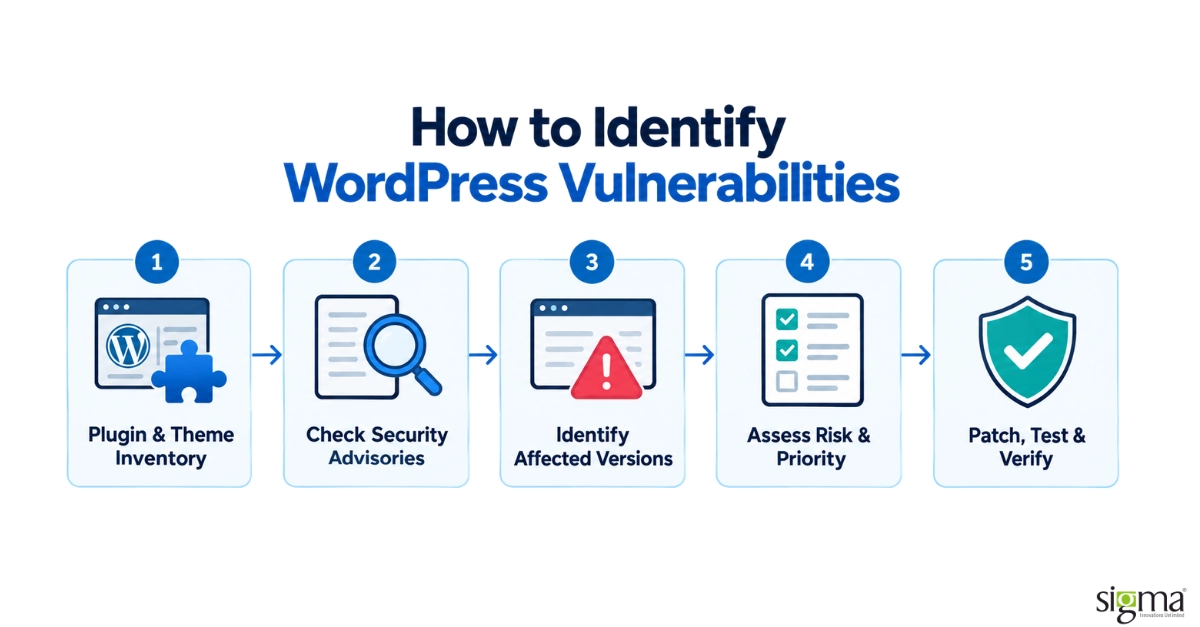
Begin by looking at what’s installed on your website. Check the active plugins, inactive plugins, themes, versions, and whether their developers are still maintaining them.
Next, compare those versions against security advisories. The Patchstack vulnerability database and Wordfence Intelligence are useful sources of information about disclosed WordPress vulnerabilities.
Not all findings are equally serious. A critical vulnerability that can be exploited without authentication might need more immediate attention than a lower-severity issue that requires administrator access.
Review the affected versions, how the vulnerability can be exploited, whether a patch is available, and whether the affected feature is enabled. Also consider whether the issue is exposed to attackers and if temporary mitigations are available. Severity scores alone are not enough.
Also, read our success story: Simplifying Complex WordPress Data Imports with a Secure, Scalable Plugin Solution
Update Plugins Without Breaking the Site
This is where security advice meets everyday WordPress maintenance.
We’ve been involved in projects where plugin updates were carried out in controlled batches. In one instance, an update was later reverted through version control. In another, a form plugin update was temporarily rolled back in staging for diagnosis.
These were not confirmed security breaches, but they still drove home the point: completing an update does not necessarily mean the update was successful.
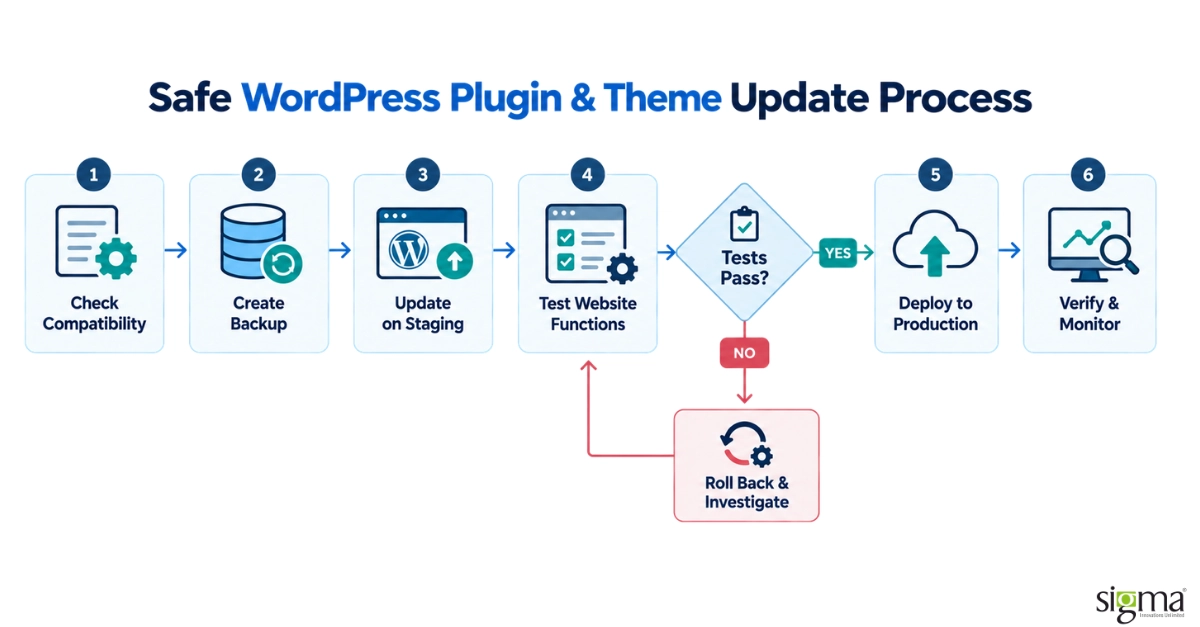
Make a restorable backup of the database and files before updating a plugin or theme. Check the plugin or theme for compatibility with your PHP and WordPress versions, and keep the previous plugin package available in case you need to revert.
Test updates in a staging environment first, using versions and configurations as close to production as possible. After each update, check much more than the homepage. Forms, login, navigation, page builders, redirects, and integrations can all behave differently after an update.
In our experience, we’ve also seen customized themes need extra fixes for mobile navigation, browser compatibility, and cached assets. Just because a page looks good on desktop doesn’t mean the whole site works.
For security patches that really matter, testing should be targeted and prompt, not an excuse to delay remediation indefinitely.
Also, read our success story: Secure AI-Powered WordPress Editing Without Sharing Admin Passwords
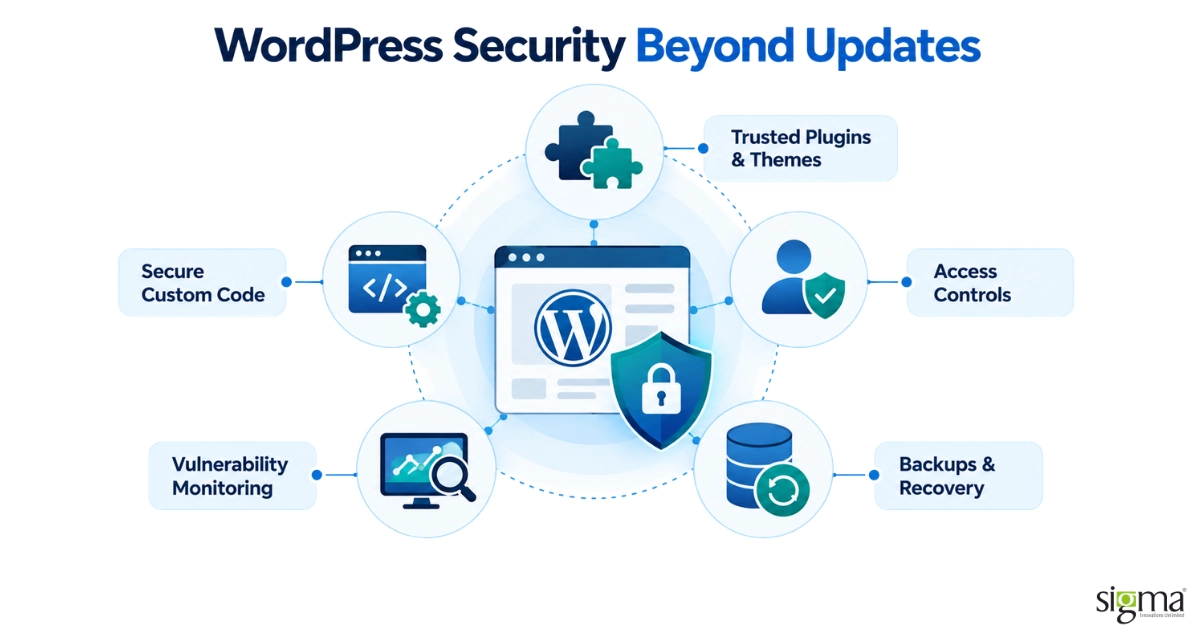
Security Doesn’t End With Updates
Picking the right plugins can help prevent problems in the first place.
Use extensions from trusted publishers, review their update history, and never install unverified copies of popular plugins. Delete unused plugins and themes instead of keeping unnecessary code on the website.
Keep WordPress core and the hosting environment updated as well. Even if your plugins are secure, outdated PHP versions or unsupported server software can introduce additional risks.
Custom development should be equally protected. WordPress provides sanitization, escaping, prepared database queries, and capability-checking functions that can help prevent common coding errors. Nonces help protect against CSRF, but they don’t serve as an alternative to access control.
Restrict administrator privileges, use strong authentication, and monitor unusual file changes or suspicious activity.
Caching is another area worth paying attention to during maintenance. Cached pages may make a resolved issue appear unresolved or hide changes that haven’t reached visitors. Clearing the relevant caches and checking uncached responses can help confirm whether a fix is actually working.
Looking for reliable CMS development services?
What If a Vulnerability Is Already Discovered?
The first step is to verify whether the installed version is affected. Check the official security advisory to see if a patched version is available.
If one is available, apply it safely. If not, consider disabling the affected feature, temporarily deactivating the plugin, or following the vendor’s recommended mitigation.
If you suspect the website has been compromised, preserve the evidence, investigate any unauthorized changes, and follow incident-response procedures. Don’t assume an update alone will clean up the site.
Finally, verify that the security issue has been addressed and that the website is still functioning correctly. A patch might successfully fix the vulnerability but still affect existing functionality.
Security Is a Continuous Maintenance Choice
WordPress security doesn’t mean installing every update blindly or putting updates off because something might break.
It’s about knowing what your website depends on, being able to identify real vulnerabilities, and having a reliable method for testing, implementing, and rolling back changes.
For businesses running customized WordPress websites, having a structured maintenance process makes a difference. Regular updates, compatibility checks, backups, and technical support can help reduce security risks without affecting essential website functionality.
The aim is straightforward: protect the site without allowing routine maintenance to introduce unnecessary risks.
Need help maintaining your WordPress website?
Sigma Infosolutions can help with WordPress development, compatibility improvements, and ongoing website maintenance.
Frequently Asked Questions
How do I know if my WordPress plugins are vulnerable?
Start by checking which plugin versions are installed on your website. Compare them with security advisories from the plugin developers, Patchstack, or Wordfence. If a vulnerability affects your version, check whether a fix is available and how urgently it needs to be applied.
Is it safe to enable automatic updates for WordPress plugins?
Automatic updates can be useful, especially for security fixes. However, they can sometimes cause compatibility issues on customized websites. If your site relies on custom functionality or several integrations, it’s better to have reliable backups and a way to test important features after updates.
How often should WordPress plugins and themes be updated?
Check for updates regularly rather than waiting several months. Security patches should be prioritized based on the risk they address. For critical vulnerabilities, don’t delay an update unnecessarily, but make sure you have a backup and a way to verify that the website still works.
What should I do if a WordPress plugin update breaks my website?
First, identify what stopped working. Check error logs and, where possible, reproduce the issue in staging. If the update is responsible, you may need to restore the previous working version while investigating. Before rolling back a security patch, consider whether doing so would reopen a known vulnerability.
Do I really need a staging environment for WordPress updates?
For a simple website, not every update needs extensive staging tests. But if your website has custom themes, forms, payment features, or third-party integrations, staging can save a lot of trouble. It lets you identify problems before those changes reach visitors.
Can updating a vulnerable plugin remove malware from my website?
Not necessarily. Updating a plugin can close the security gap, but it doesn’t automatically remove malicious files, unauthorized accounts, or other changes an attacker may have made. If a website has already been compromised, it needs a proper investigation and cleanup alongside the security fix.
How much does WordPress website maintenance cost?
WordPress website maintenance typically costs between $30 and $200 per month for small to medium-sized websites. Larger websites with custom functionality, multiple integrations, or advanced security requirements may cost 200–500 or more per month. The actual cost depends on the website’s complexity and the services included, such as plugin updates, backups, security monitoring, performance checks, and technical support.
How can I choose safe and reliable WordPress plugins?
Choose plugins from trusted sources, such as the official WordPress Plugin Directory or established developers. Check when the plugin was last updated, whether it supports your WordPress version, and what other users say about it. It’s also worth checking for reported vulnerabilities through Patchstack or Wordfence. Avoid installing plugins you don’t need, and test new ones in staging before using them on your live website.